Creative reverb from real places
Capture a space. Take its sound with you.
One clap. A stairwell, a tunnel, a tiled bathroom, caught in sound. Spaceprint turns the character of a place into a reverb you can hear, see and keep. Watch its sculpture take shape, hear instruments inside it, then export a WAV impulse response for your music.
- Capture with one clap
- See and hear its character
- Standard WAV export
What it is
Every room has a sound. Now you can keep it.
Clap in a stairwell and listen: the sound rings, bounces and fades in a way that belongs to that place alone. An impulse response is a recording of exactly that, and a convolution reverb uses it to put any other sound in the same place.
Spaceprint captures that character with your iPhone. Make one sharp clap and let the space ring out. Hear a snare, voice, piano or synth through the result, collect it with a photo and a note, and take it into your DAW as a WAV impulse response. The little imperfections are part of the sound: this is a creative reverb tool, made for finding places you want to hear again.
- One clap
- Let the space ring, then keep its character
- 3D sculpture
- A shape made from the sound you captured
- Listen back
- Snare, voice, piano, synth and the original clap
- Your collection
- Spaces, photos, places and notes
- WAV
- An impulse response for your convolution reverb
Capture
A moment in a room. A sound you can keep.
One sharp clap starts it. Spaceprint listens while the room answers.
-
01 / Listen
Clap once. Let it ring.
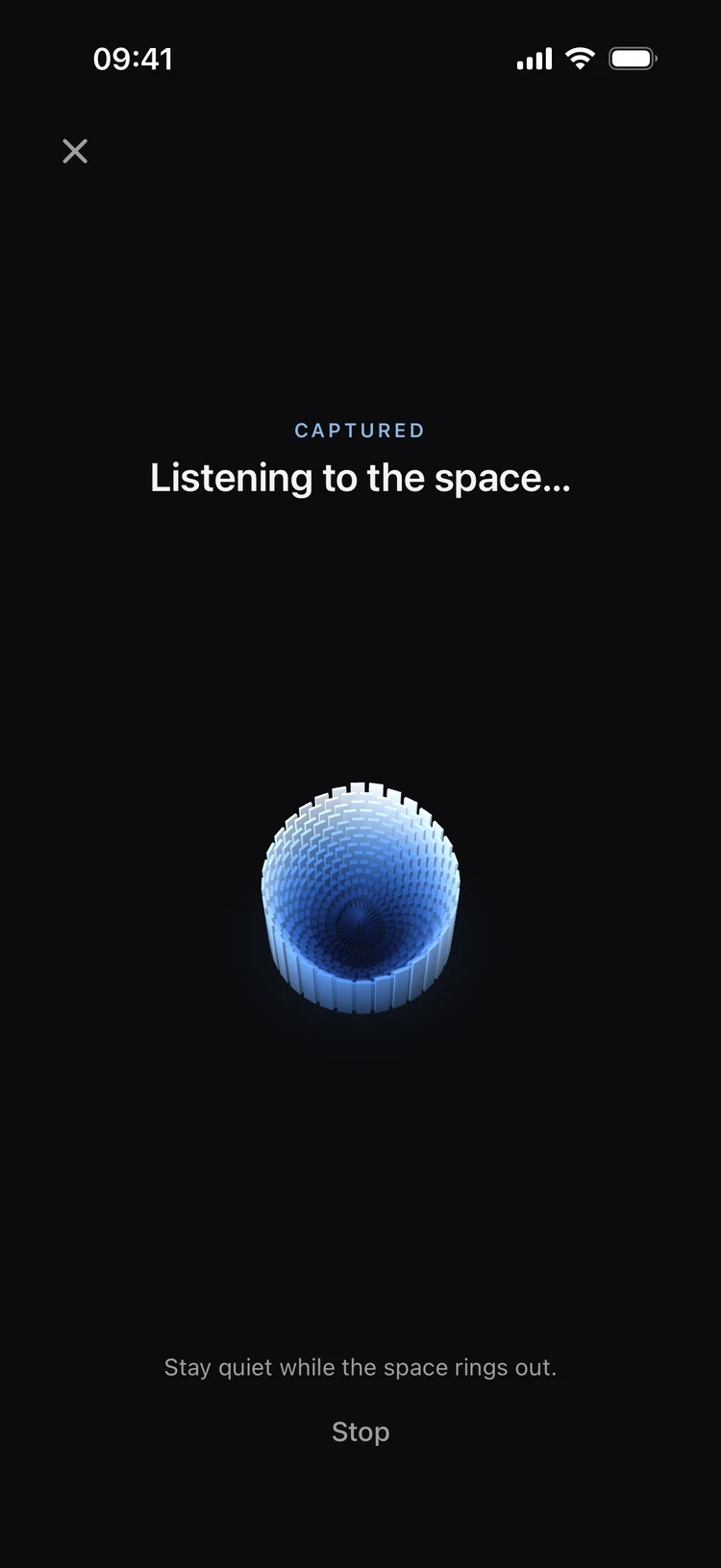
Start the capture, wait for the countdown, then make one sharp clap. Keep the phone still and stay quiet. Spaceprint listens for the tail to fade, while an acoustic bloom follows the sound.
-
02 / Discover
See what you heard.
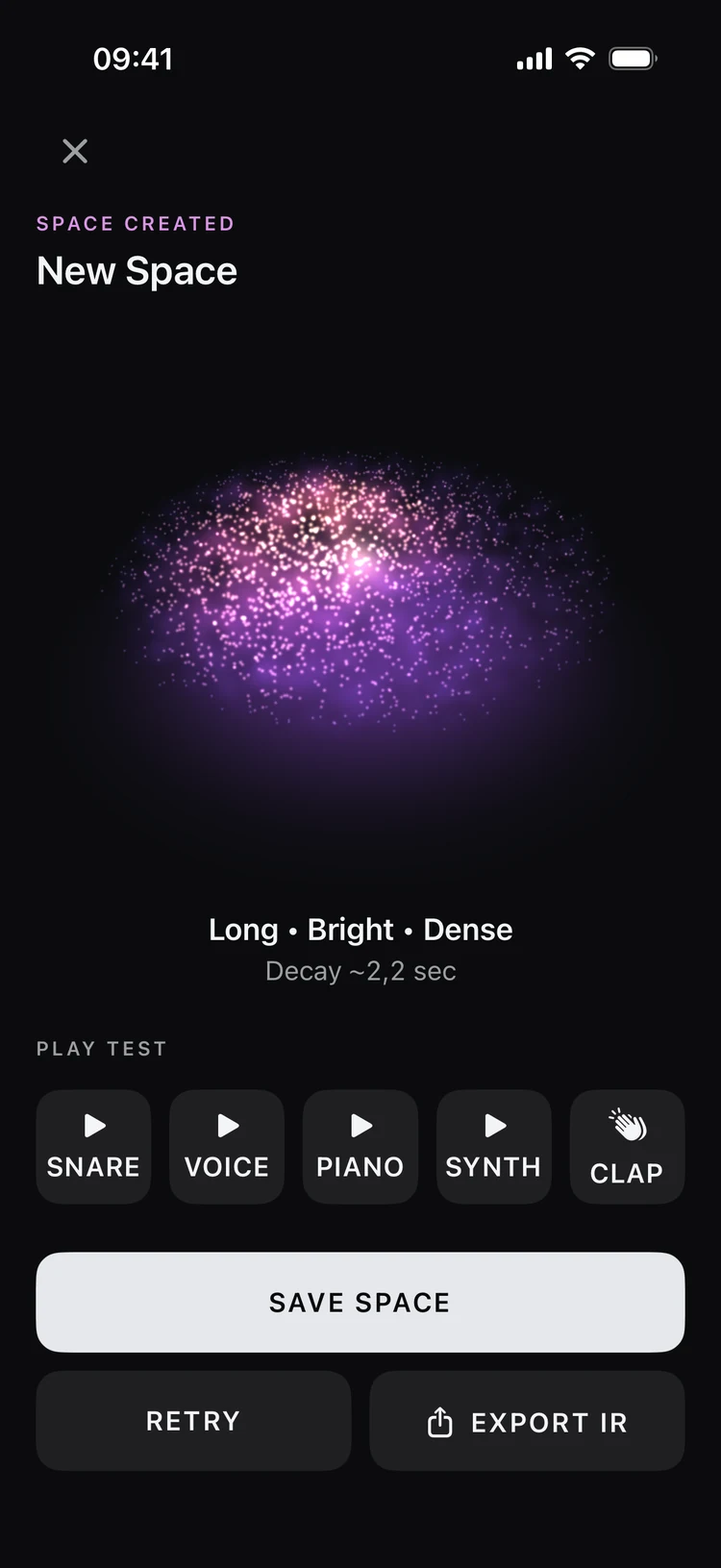
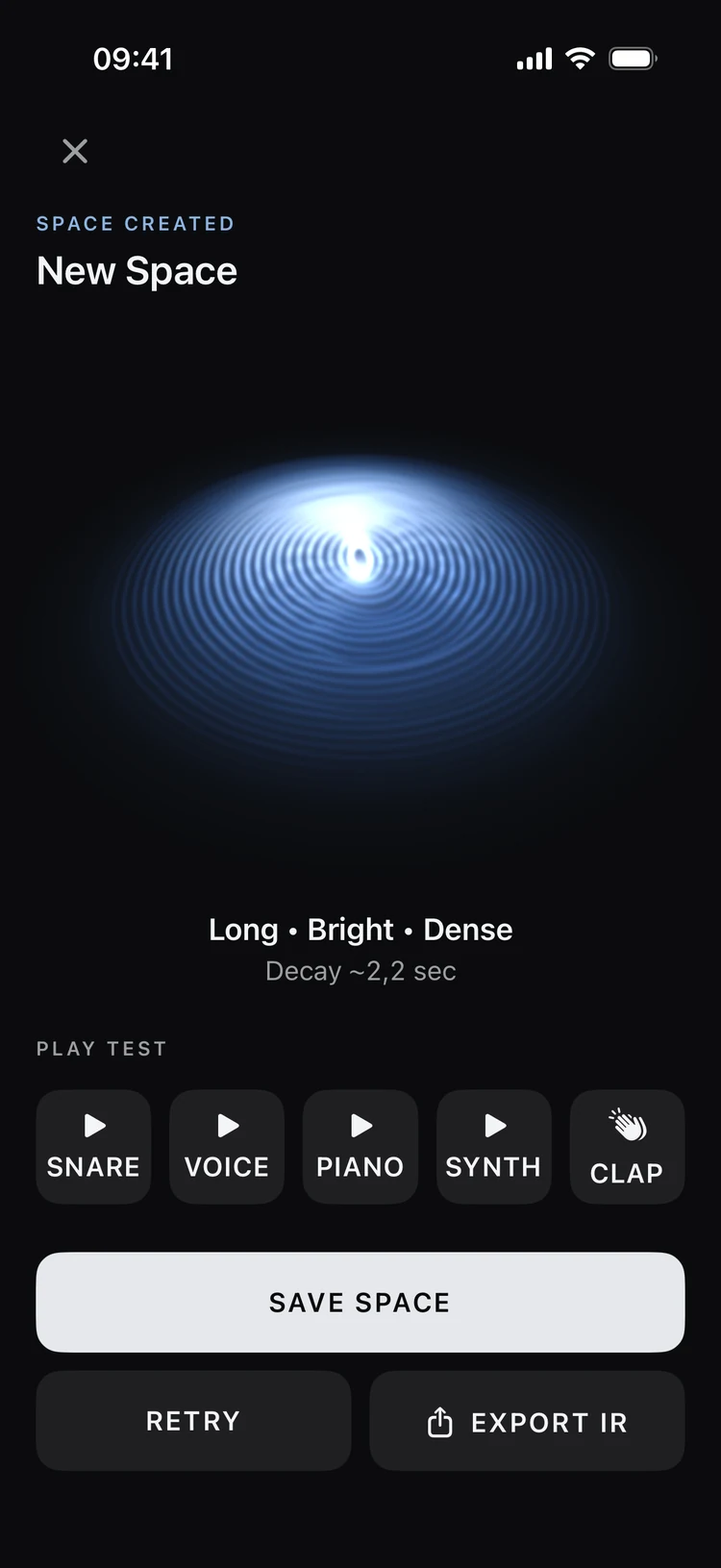
The recording becomes a reverb sculpture you can turn with a finger. Its shape responds to the sound and builds again as you audition it. An impression of the room’s voice, rather than a model of its walls.
How it works
Five steps from a place to a print
Find a space
Anywhere with a sound of its own: a stairwell, a church, a tunnel, a tiled bathroom, a parking garage.
Place the phone
Put it where you’d like to hear the room from, then take a couple of steps away.
Clap once
Start the capture, wait for the countdown and clap sharply. Stay quiet and still while the space rings out.
Listen
Hear a snare, voice, piano or synth through the space, or replay the original clap. Compare Dry and Wet to hear the difference.
Keep it
Name the space, add a photo or note, and export its impulse response as a WAV for a compatible convolution reverb.
Features
Everything it does
Built for collecting character and putting it to use in music.
One-clap capture
A countdown, one sharp clap, then the room ringing out. Spaceprint automatically listens for the tail to fade.
Acoustic bloom
A living visual follows the capture as the room rings out, then gives way to the finished reverb sculpture.
A sense of character
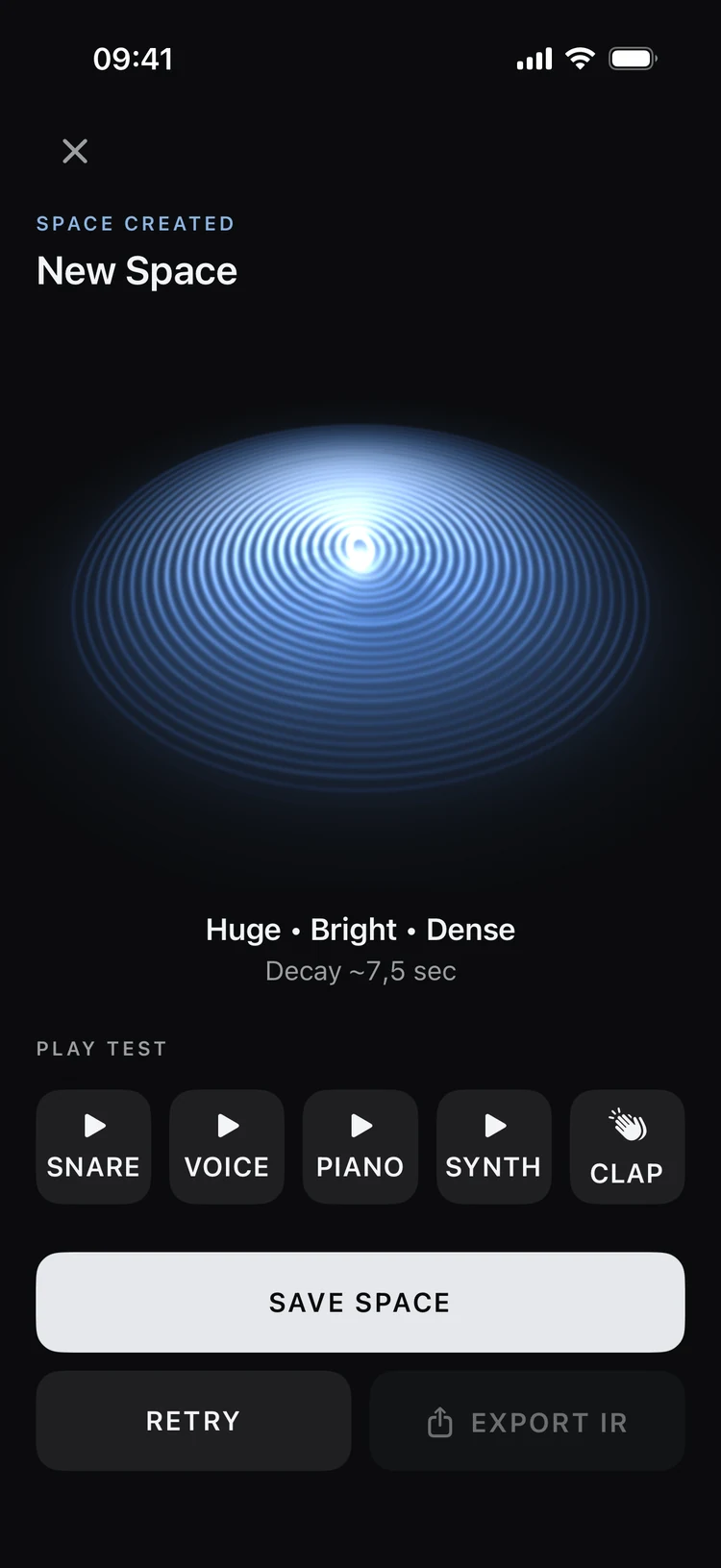
Plain descriptions and an estimated decay help you recognise the sound. Long, bright, dense: keep the spaces that speak to you.
Hear the space
Audition snare, voice, piano and synth, or replay the captured clap. Compare Dry and Wet, then adjust Mix and Pre-delay.
Decay
How long the space rings, estimated for every capture and shown at a glance.
Helpful capture advice
If the clap is clipped, too quiet or obscured by noise, Spaceprint explains what to try for a better take.
Reverb sculptures
Turn a shape made from the captured sound. Watch it build again as you listen. Its form expresses the reverb, not the geometry of the room.
A collection of places
Save and name each space, add a photo, and write down where you were and what you heard. Reopen it whenever a track needs that character.
WAV export
An ordinary WAV impulse response, through the share sheet and the Files app, never locked into an app.
Clean recording
Captures use the microphone in measurement mode, without voice processing or automatic gain.
iPhone and iPad
Made for the phone in your pocket, so any room you walk into can be captured.
Private by design
No account, no tracking, no ads. Your spaces stay on your device.
Screens
Every space has a shape of its own.
Captured from the current development build, using a simulated room to demonstrate the capture and listening experience.
The captured spaceIts sculpture, character and decay, ready to explore. 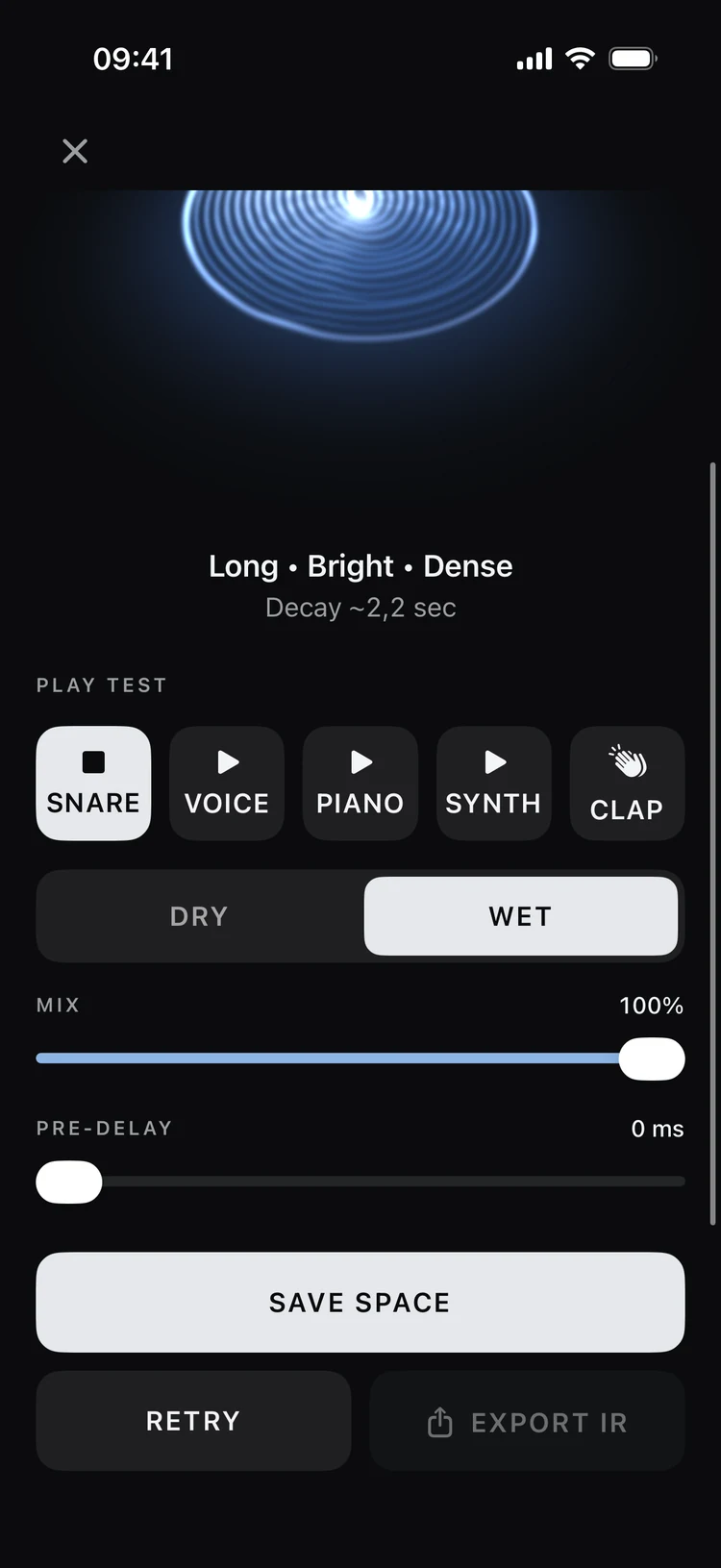
Listen inside itFour test sounds and your clap, with Dry/Wet, Mix and Pre-delay. 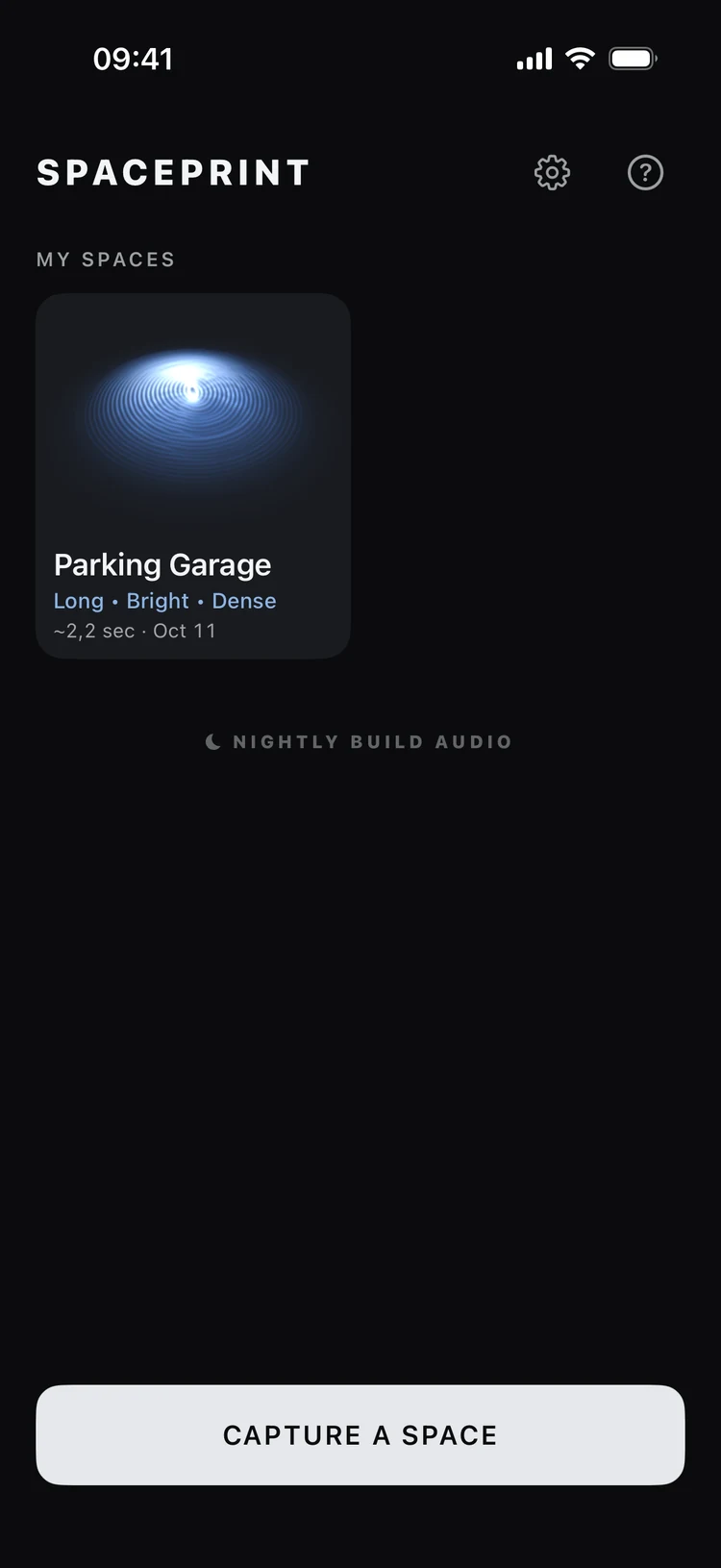
My SpacesA collection of sounds you can revisit and use again. 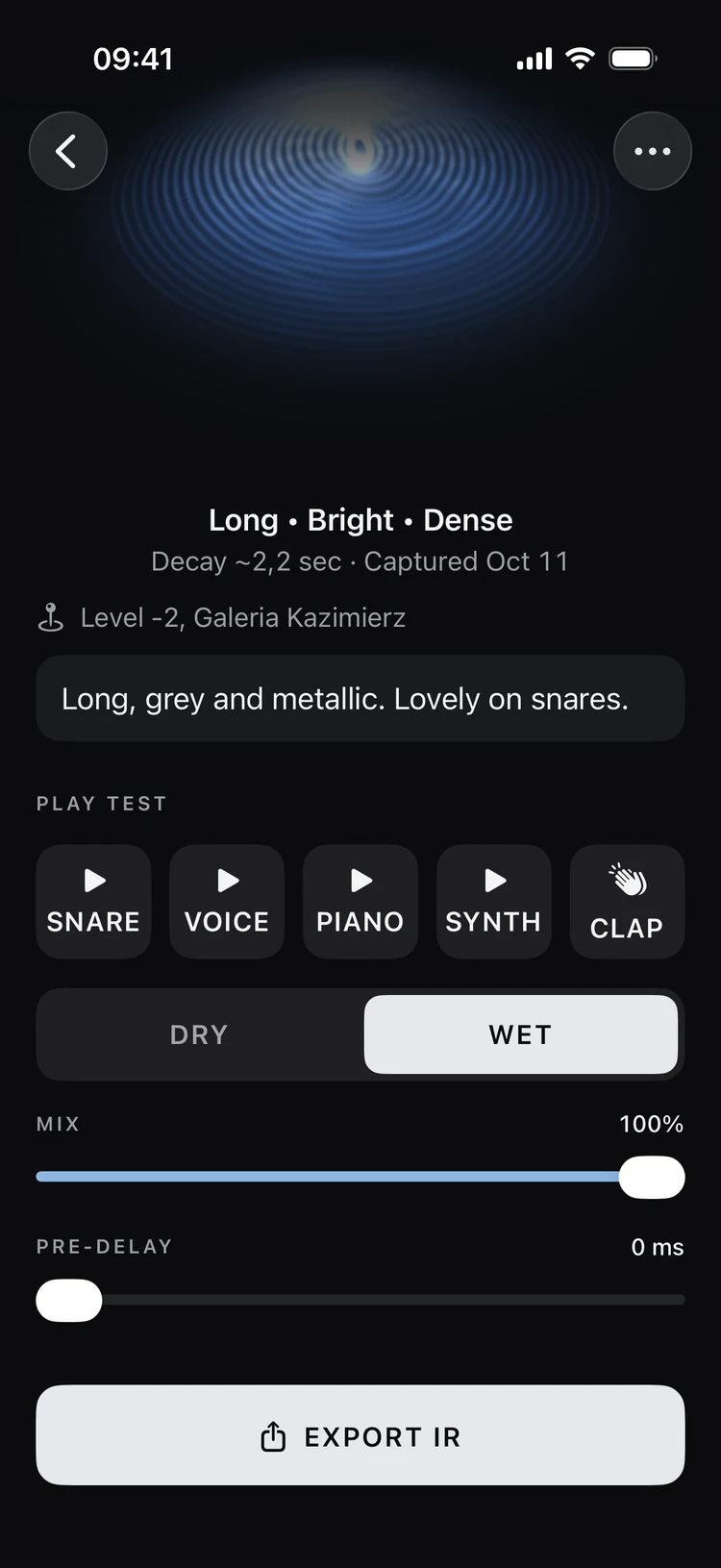
Remember the placeA place and your own notes, right beside its sound.
Spaceprint for desktop · VST3 previews
Your captured spaces.
Inside your DAW.
Open the plug-in and play: each preview includes five factory spaces. Bring your own places in from the iOS app over your local network, or import a WAV impulse response, then shape the reverb around your music.
Windows VST3
Windows x64 · 0.1.0-preview.1 Download Windows VST3Includes the complete plug-in, installation guide and third-party notices. Five factory spaces, nine controls and a live spectrogram.
Windows installation & transfer guide Windows preview limitations Windows SHA-256 checksumMac VST3
Apple Silicon · 0.1.1 preview Download Mac VST3Includes the complete plug-in with five factory spaces and Mix, Pre-delay, Length, Tone and Width. Apple Silicon only; Intel Macs and Rosetta hosts are not supported.
Ad-hoc signed development preview. Not Developer ID signed or notarized; macOS may prevent it from loading.
Mac installation & transfer guide Mac preview limitations Mac SHA-256 checksumBoth previews use the Spaceprint capture and local-transfer formats. Their factory banks and controls differ; choose the guide for your platform. Cross-platform DAW session interchange is still being validated.
Windows preview
Nine controls. A live view of the sound.
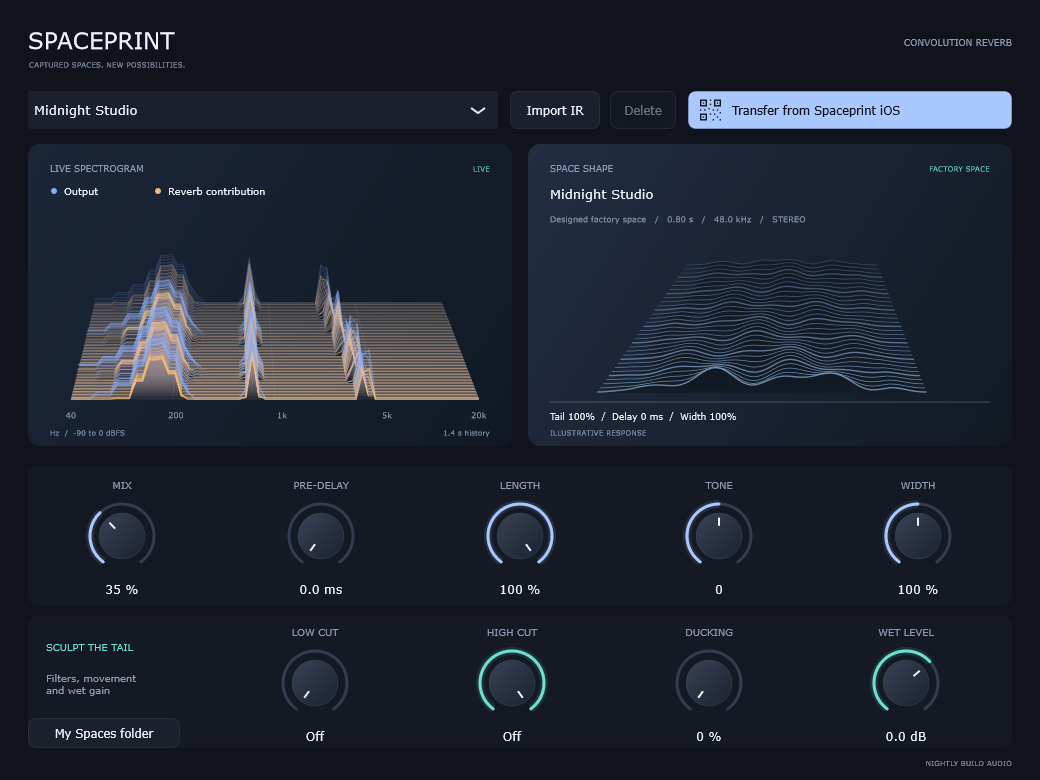
Five Windows factory spaces.
Original designed impulse responses, with the reflections and character of imagined places. Midnight Studio loads on first use. All five are built in, so you can start without the phone app.
- 01 / ROOMMidnight Studio
Close, controlled and intimate. A little room around a dry sound.
- 02 / CATHEDRALCandlelit Cathedral
A wide, diffuse tail that gives voices and pads room to unfold.
- 03 / CAVEBasalt Cave
Dark reflections, depth and an uneven natural-feeling decay.
- 04 / CANYONRedstone Canyon
Spaced echoes across an open stereo field. Let the gaps speak.
- 05 / SILOConcrete Silo
A coloured, reflective tail with an industrial ring.
Keep the character. Find the fit.
Blend with Mix, set Pre-delay, shorten the tail with Length, and adjust Tone and Width. Low Cut, High Cut, Ducking and Wet Level help the reverb sit around the dry sound.
From phone to session.
One click opens a pairing QR. Transfers stay on your local network. Your spaces live in a shared desktop library, and the selected impulse response is saved with the DAW project.
About the Windows preview
Windows 11 x64 tested, with a 64-bit VST3 host such as REAPER. Windows 10 execution and other hosts remain unverified. This is an unsigned preview build; Windows ARM is not verified.
Long impulse responses at 96 kHz with very small buffers can cause audio dropouts. REAPER offline-render repeatability and end-to-end physical iPhone transfer checks remain open. Try a larger audio buffer and verify rendered audio before relying on this preview in a project.
Windows guide
From download
to your first space.
01Install the Windows VST3
- Close your DAW, download the ZIP and extract it.
- Copy the entire Spaceprint.vst3 folder into
%LOCALAPPDATA%\Programs\Common\VST3\. Create that directory if needed. Keep the folder'sContentssubfolder and all its files together. - Reopen your DAW and scan for VST3 plug-ins. Add Spaceprint as an effect on an audio track or return channel.
To update, close the DAW and replace the existing complete Spaceprint.vst3 folder. The download is a plug-in bundle, not an installer or a standalone application.
02Find it in REAPER
Use 64-bit REAPER. Open Options → Preferences → Plug-ins → VST. If the user VST3 folder is not already scanned, add %LOCALAPPDATA%\Programs\Common\VST3 to the plug-in paths using its expanded folder path, then choose Re-scan.
Open a track's FX browser and search for Spaceprint. Midnight Studio is loaded by default; the space selector includes all five Factory Spaces and your own library. Play the track to hear the reverb and see the live spectrogram.
03Send a saved space from iOS
- Connect your iPhone or iPad and Windows computer to the same local network. The computer can use Ethernet while the phone uses Wi-Fi.
- In the VST, click Transfer from Spaceprint iOS. A QR code appears immediately.
- In the iOS app, open a saved space and tap Send to Desktop. Scan the QR, choose your captures and tap Send selected captures.
- The received spaces appear in the desktop library. The latest transfer loads automatically by default.
Send to Desktop requires the iOS full-version unlock. The iOS app's App Store availability is listed above. You can use Import IR with an existing WAV without the phone app.
Allow Camera and Local Network access for Spaceprint on iOS. If a connection fails, check that both devices are on the same private network and that the DAW is allowed through Windows Firewall on that network. Avoid guest Wi-Fi that isolates devices. Transfer settings → Network connection lets you select the correct adapter; create a new QR after changing it.
04Start with the sound
On a track insert, start with a modest Mix and adjust it while listening. On a dedicated reverb return, set Mix to 100% and control the amount with the send. Use Pre-delay to separate the dry attack from the reverb, and Length to shorten a long tail.
Low Cut and High Cut affect the reverb only. Ducking lowers the tail while the dry signal is present; Wet Level controls the reverb level before the blend. The blue and amber layers use the same level scale so you can see how these changes affect the audible result.
05Checksums, updates and feedback
Release 0.1.0-preview.1 · source revision 7d83e60. The download checksum lets you compare your ZIP with the published file. The archive also contains an installation guide and checksums for its contents.
This preview is unsigned, so Windows may identify an unknown publisher. Obtain it from this official page and follow your system's security guidance. Please report your DAW version, sample rate, audio buffer size and the steps that caused a problem to contact@nightlybuildaudio.com.
Mac preview · Apple Silicon
A space to play in, from the first note.
A new instance opens with Velvet Room. Choose another factory space or import your own capture, then set the blend with five familiar reverb controls.
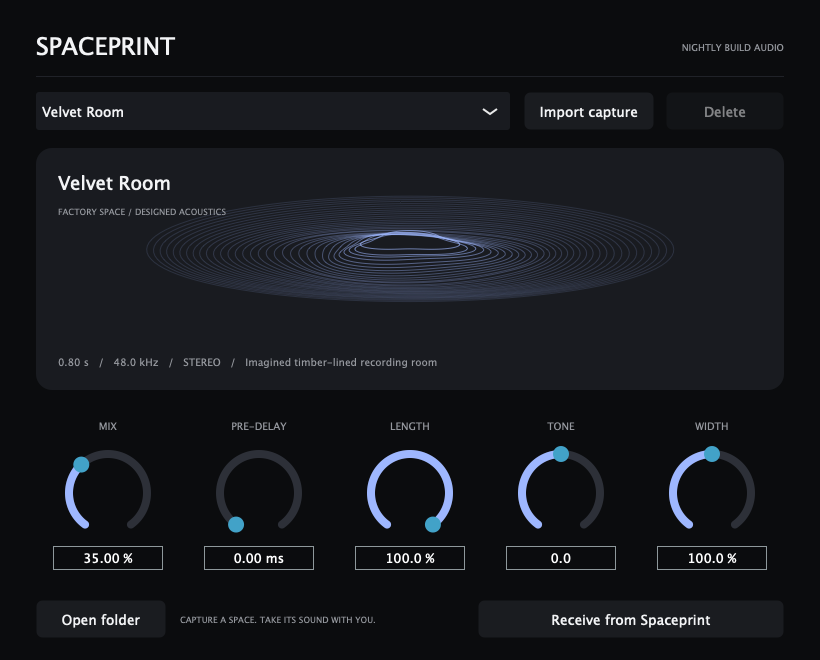
Five Mac factory spaces.
Original designed acoustics inspired by plausible spaces. These are imagined rooms and landscapes, not field recordings. Every impulse response is embedded in the plug-in, ready without a phone or separate sample folder.
- 01 / STUDIO · 0.8 SVelvet Room
Close timber reflections with a short, controlled tail. Warm depth for a dry sound.
- 02 / CATHEDRAL · 5.8 SLantern Cathedral
A soft onset and a long, spacious stone-vault decay for voices, strings and pads.
- 03 / CAVE · 3.6 SBasalt Grotto
Dark, uneven rock reflections settling into a low, lingering bloom.
- 04 / CANYON · 2.8 SRedrock Narrows
Distinct returns from distant sandstone walls, with open space between the echoes.
- 05 / RESERVOIR · 4.2 SMidnight Cistern
A low underground vault with fluttering reflections and a bright, textured tail.
About the Mac preview
This Apple Silicon VST3 passed pluginval, factory-audio, saved-state and local-network regression tests. The ZIP contains only the VST3 bundle; AU and standalone versions are not included. It is ad-hoc signed and not notarized. Follow your system's security guidance if macOS blocks the downloaded preview.
Physical-phone transfer and full DAW-session checks remain open. Long reverbs or rapid space changes at high sample rates and small buffers may cause dropouts. Test your host and check rendered audio before relying on this preview in a project.
Mac guide
Unzip. Add a space.
Press play.
01Install the Mac VST3
- Quit your DAW, download the Mac ZIP and extract it.
- In Finder, choose Go → Go to Folder and enter
~/Library/Audio/Plug-Ins/VST3/. Create the VST3 folder if needed. - Copy the entire Spaceprint.vst3 bundle into that folder. To update, replace the existing complete bundle with your DAW closed.
- Reopen a native Apple Silicon VST3 host, rescan plugins if needed and add Spaceprint as an effect.
This archive does not support Intel Macs or an Intel-only DAW running through Rosetta. It is a VST3 bundle, not an installer.
02Choose a factory space
Velvet Room loads in a new instance. Open the space selector to find all five sounds under Factory spaces. Your own imports appear under My captures. Factory spaces stay available without the phone app or any library files.
Use Mix, Pre-delay, Length, Tone and Width to fit the space around your track. On a dedicated reverb return, start with Mix at 100%. Existing DAW projects restore their saved capture and settings.
03Import or receive your own space
Use Import capture for a WAV impulse response or a Spaceprint capture package.
- For a phone transfer, connect the Mac and iOS device to the same private local network.
- Click Receive from Spaceprint, choose the network connection and click Create pairing QR.
- Open a saved space in the iOS app, choose Send to Desktop, scan the QR, select captures and send them.
Allow Camera and Local Network access when asked. Guest Wi-Fi may isolate devices. Send to Desktop requires the iOS full-version unlock; the app's App Store availability is listed above. Factory spaces and WAV import work without it.
04Version and download details
Mac version 0.1.1 · source revision 2504ad6 · 7,001,475 bytes. Read the complete Mac release notes or download the SHA-256 checksum.
The Mac and Windows previews are separately versioned releases with different factory banks and interfaces. Shared capture, transfer and state formats do not imply identical controls or tested cross-platform DAW sessions. For help, include your Mac, macOS and DAW version, sample rate and audio buffer size in an email to contact@nightlybuildaudio.com.
Spaceprint guide
A little guidance.
Then make it yours.
Find a place with a voice, then take a little of it home. These instructions follow the current development build.
01Capture your first space
Set the phone where you want to hear the room from and step back about two paces. Choose Capture a Space, then Start Capture. After the countdown, cup your hands slightly and make one sharp, loud clap.
Keep the phone still and stay quiet while the room rings. Spaceprint listens for the tail to fade and then prepares the result. Wait for a quiet moment before starting: voices, traffic and ventilation become part of the recording.
02Explore the reverb sculpture
Drag the finished sculpture to turn it. Its shape comes from the recorded sound; it is an impression of the reverb, not a scan of the room. The character words and estimated decay describe what you captured.
Play a test sound to see the sculpture build again as you hear it. Choose a capture for its musical character and use any capture advice to decide whether to try another take.
03Audition and compare
Under Play Test, choose Snare, Voice, Piano or Synth to hear it through the captured space. Clap replays the original capture. Tap the active sound again to stop it.
Switch between Dry and Wet. In Wet mode, Mix controls how much reverb you hear, and Pre-delay changes when it arrives. These are listening controls; the exported WAV is the impulse response itself.
04Save a place, photo and notes
Save the capture and give it a memorable name. Reopen it in My Spaces, then open its details to add a photo, place name or notes about the sound. Photos are optional; the sculpture can stand in for one.
The place is text you enter yourself. Photos and notes stay with the library entry and are not included in the exported WAV.
05Export an impulse response
Choose Export Space on the captured or saved space. It comes with the full version: Spaceprint is free to try, and one purchase, never a subscription, unlocks exporting and keeping as many spaces as you like. Use the share sheet to save the WAV to Files or send it to your music-making setup. Load it into a convolution reverb that accepts WAV impulse responses.
The file carries the captured acoustic character. Apply it to drums, instruments or voices in your reverb plug-in and set the blend there.
06Change the look or improve a take
Settings offers Midnight, Ember, Dusk, Aurora and Spectrum colour schemes. The current build also lets you explore Ripples, Nebula, Orb, Ridges and Terrain sculpture styles. These visual choices change how the sound is drawn, not the captured audio.
If a clap clips, move farther from the phone. If it is too quiet, move a little closer and cup your hands. For a noisy capture, wait for a quieter moment and let the whole tail finish before moving.

SPACEPRINT
Capture a space. Take its sound with you. For iPhone and iPad.
More from Nightly Build Audio